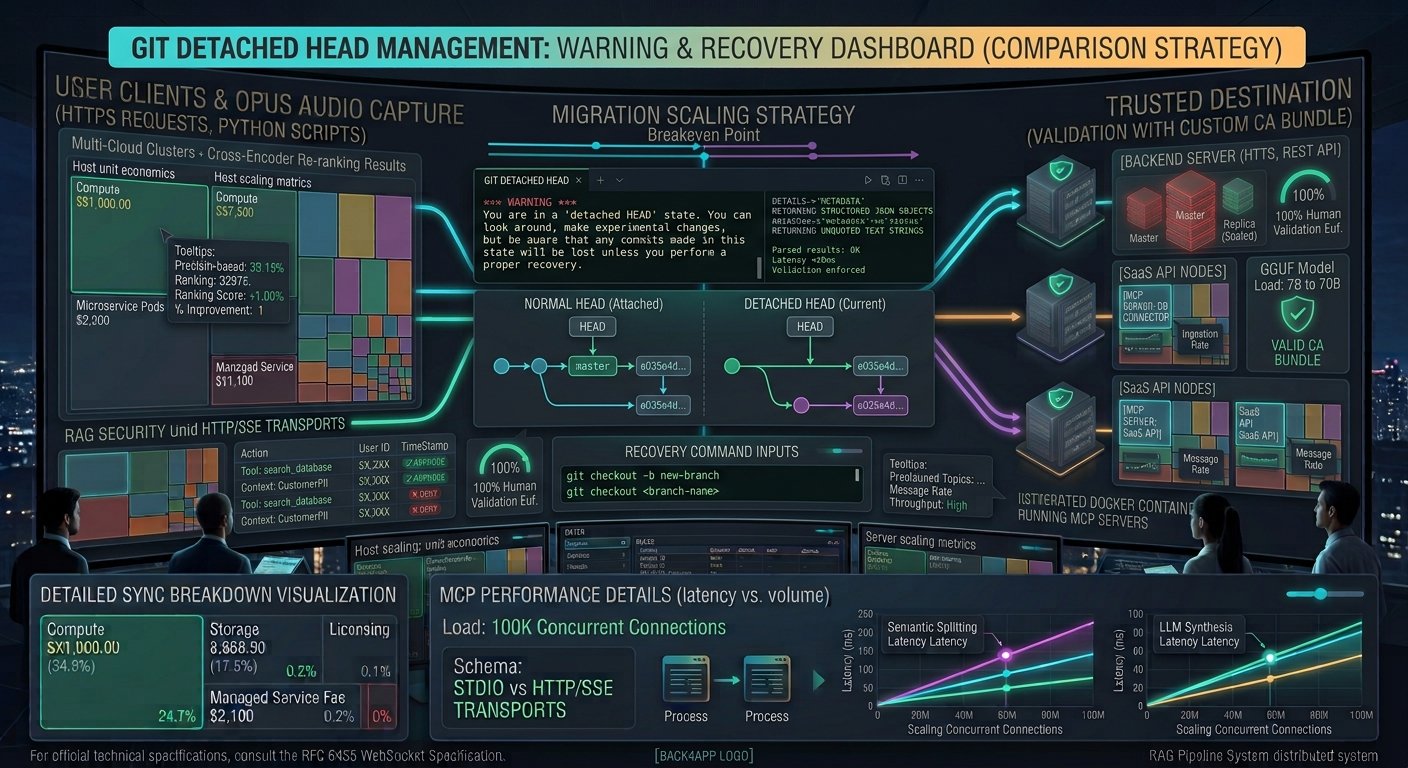
Encountering the dreaded warning message—You are in a 'detached HEAD' state—while running standard Git commands can instantly cause panic. Whether you checked out a specific historical commit hash to test a bug or accidentally switched to a tag, finding yourself disconnected from any local branch means that any new commits you write are floating untethered and risk being orphaned.
Learning how to resolve Git detached HEAD state and save your commits is an essential troubleshooting skill for every developer. Understanding how Git pointers work allows you to safely capture your changes, create permanent branches, and recover work that might otherwise seem lost.
This comprehensive guide breaks down why the detached HEAD state happens, how to preserve your work using safe branch maneuvers, and how to recover uncommitted or orphaned changes using git reflog.
Key Takeaways
- What is HEAD? The
HEADis simply a pointer representing your current working directory and local checkout,usually pointing to a branch name rather than a direct commit. - The Danger of Detached HEAD: When HEAD is detached, it points directly to a commit hash. If you switch to another branch without saving your work, those new commits become dangling and invisible to normal branch tracking.
- The Golden Rule: Never panic. Git rarely deletes data immediately; commits made in a detached state can almost always be recovered using
git reflog. - The Quick Fix: To save your work, immediately create a new branch from your current detached state using
git checkout -b <new-branch-name>orgit switch -c <new-branch-name>.
Understanding What a Git “Detached HEAD” Actually Is
To fix the issue, you must first understand how Git manages history.
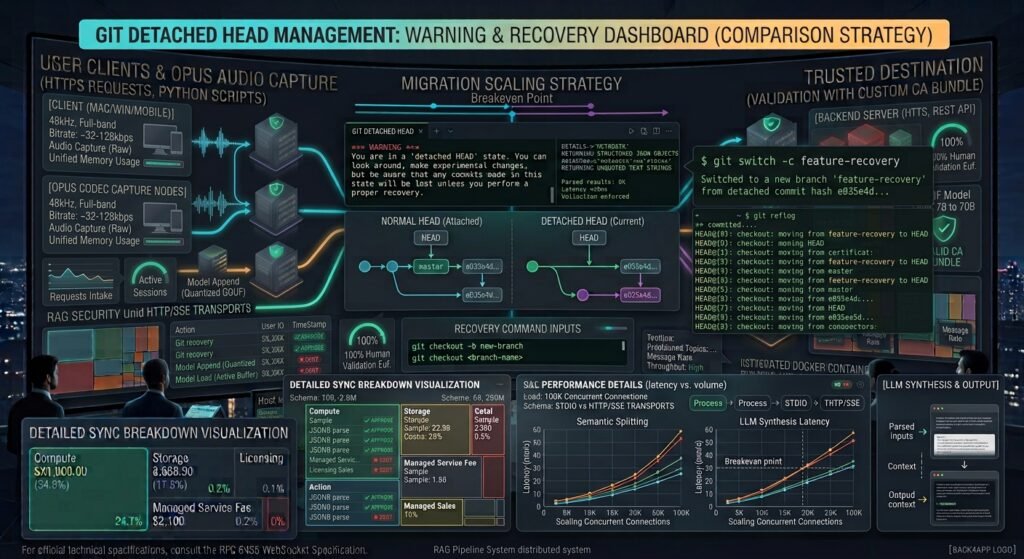
┌────────────────────────────────────────────────────────────────────────┐
│               NORMAL BRANCH vs. DETACHED HEAD STATE                    │
├───────────────────────────────┬────────────────────────────────────────┤
│ NORMAL STATE (Attached)       │ DETACHED HEAD STATE                    │
├───────────────────────────────┼────────────────────────────────────────┤
│ HEAD ➔ main ➔ Commit C        │ HEAD ➔ Commit B (No branch tracking)   │
│ (New commits advance 'main')  │ (New commits float without a branch)   │
└───────────────────────────────┴────────────────────────────────────────┘
- Attached HEAD: Normally,
HEADpoints to a branch reference (likemainorfeature-login), and that branch points to the latest commit. When you commit changes, the branch automatically moves forward with you. - Detached HEAD: When you checkout a specific commit hash (e.g.,
git checkout a1b2c3d), Git pointsHEADdirectly at that commit instead of a branch. You are effectively viewing history “in the past” or off the main timeline.
How to Safely Save Your Commits in a Detached HEAD State
If you have already made commits while in a detached HEAD state and want to save them permanently before switching back to your main workflow, you need to attach them to a new or existing branch.
Method 1: Create a New Branch (Recommended)
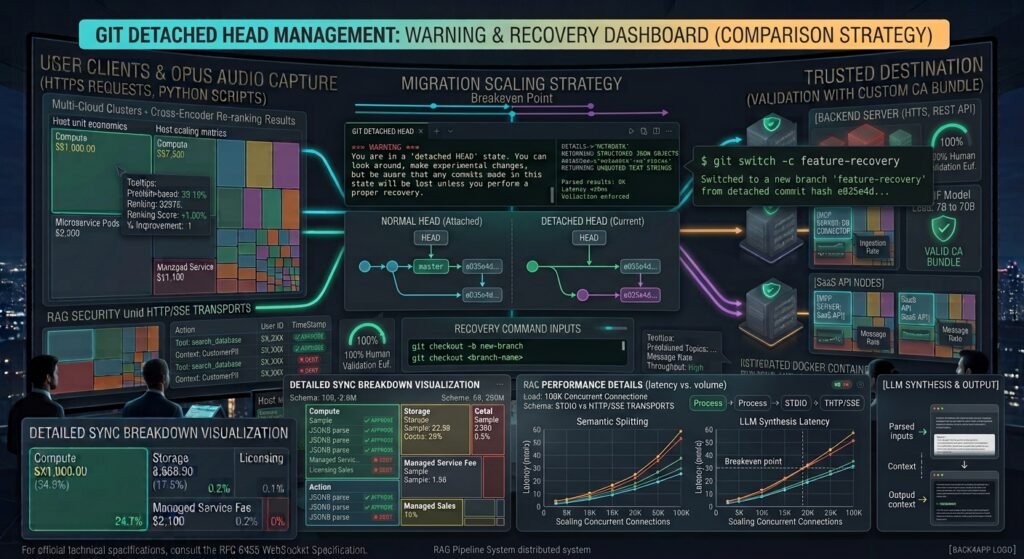
The cleanest and safest way to preserve your work is to create a brand-new branch right where you are standing. This wraps up all your detached commits into a trackable branch.
Bash
# Create and switch to a new branch from your current detached HEAD state
git checkout -b save-my-work

# Or using modern Git switch syntax:
git switch -c save-my-work
Once executed, your detached commits are now securely anchored to save-my-work, and you can push them to a remote repository (git push -u origin save-my-work).
What Happens If You Switched Branches Without Saving? (Recovery via Reflog)
If you panicked, typed git checkout main, and watched your detached commits seemingly disappear into the ether,do not despair. Git records every movement of the HEAD pointer in a log called reflog.
Using git reflog to Track Lost Commits
Even when commits are orphaned by switching branches, they remain stored in Git’s local object database for a default grace period (usually 30 days).
- View the Reference Log:Bash
git reflog - Identify Your Lost Commit: Review the output for the action right before you left your detached state. You will see a list resembling this:Plaintext
a1b2c3d HEAD@{0}: commit: Fixed critical payment bug e5f6g7h HEAD@{1}: checkout: moving from main to a1b2c3d - Rescue the Commit into a New Branch: Take the commit hash (
a1b2c3d) or reference (HEAD@{0}) and create a branch pointing to it:Bashgit checkout -b recovered-work a1b2c3d
Common Mistakes to Avoid in a Detached HEAD
To prevent accidental data loss when working with historical commits or tags, keep these best practices in mind:
- Never write production code directly on a tag checkout: Tags are immutable markers. Checking out a tag automatically detaches your HEAD. Always create a branch first (
git switch -c bugfix-branch) before making modifications. - Don’t close your terminal or run aggressive GC too soon: If you lose commits in a detached state, avoid running
git gc --prune=now, which forces Git to clean up unreferenced objects immediately. - Always push recovery branches to remote: Once you recover detached commits into a local branch, push them to your remote repository immediately to ensure cloud backup.
Conclusion
Knowing how to resolve Git detached HEAD state and save your commits transforms a terrifying version control mishap into a routine fix. Whether you preserve your work proactively by creating a temporary branch or rescue orphaned commits retrospectively using git reflog, Git provides powerful safety nets to protect your code.
By understanding how HEAD pointers operate and practicing calm recovery workflows, you can explore historical commits and tags with complete confidence.
Frequently Asked Questions (FAQs)
What does the “detached HEAD” state mean in Git?
A detached HEAD state means your HEAD pointer is pointing directly to a specific commit hash instead of pointing to a branch name. While you can read and write code in this state, any new commits you make are not attached to any branch and can become orphaned if you switch away.
Will I lose my code if I switch branches while in a detached HEAD state?
If you make commits in a detached HEAD state and switch to another branch without creating a new branch first, those commits become unreferenced (orphaned). However, they are not immediately deleted; you can recover them easily using the git reflog command.
How do I get out of a detached HEAD state safely?
To exit a detached HEAD state and save your work, simply create a new branch from your current position by running git checkout -b <branch-name> or git switch -c <branch-name>.
1 thought on “How to Resolve Git Detached HEAD State and Save Your Commits”