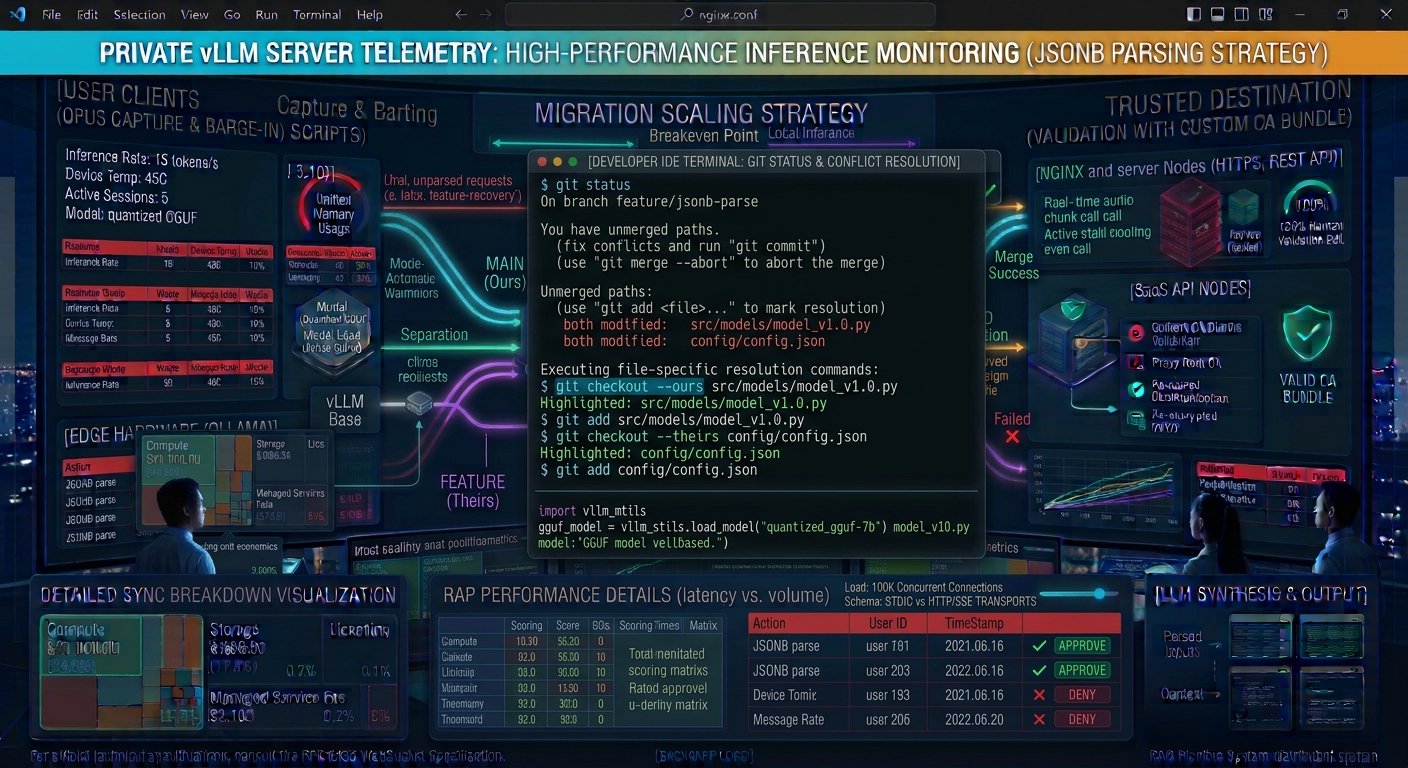
Merge conflicts are an inevitable part of collaborative software engineering. When two developers modify the same lines of code or when a feature branch diverges significantly from the main line of development, Git halts the merge process and inserts conflict markers into the affected files. While manual inspection and editing are standard practice,managing massive merges or repetitive codebase realignments requires automated shortcuts.
Mastering how to resolve Git merge conflicts with “ours” and “theirs” strategies enables developers to bypass manual line-by-line conflict resolution by automatically favoring changes from either the current branch (ours) or the incoming branch (theirs). However, understanding the nuanced difference between merge-level flags and checkout-level commands is critical to avoiding unintended code loss.
This comprehensive guide breaks down how “ours” and “theirs” strategies operate under the hood, when to apply them safely, and how to execute them step-by-step during complex merges.
Key Takeaways
- The Definition of “Ours” and “Theirs”: In Git terminology, “ours” always refers to the branch you are currently checked out on (receiving changes), while “theirs” refers to the branch or commit being merged in.
- Merge-Level vs. Checkout-Level: You can apply these strategies broadly during a merge using
-X ours/-X theirsoptions, or selectively per file usinggit checkout --oursorgit checkout --theirs. - The Risk of Data Loss: Blindly applying these strategies can overwrite critical code written by teammates.Always verify branch directions before executing automated overrides.
- Alternative Workflows: For managing historical commits or recovering orphaned code states when branching paths collide, understanding low-level reflogs is equally essential.
Understanding Git Conflict Terminology: “Ours” vs. “Theirs”
Before running merge commands, it is vital to clarify perspective. Git evaluates these keywords relative to your active working context:
┌────────────────────────────────────────────────────────────────────────┐
│                   GIT MERGE PERSPECTIVE MAPPING                        │
├───────────────────────────────┬────────────────────────────────────────┤
│ KEYWORD                       │ WHAT IT REPRESENTS IN GIT              │
├───────────────────────────────┼────────────────────────────────────────┤
│ `ours`                        │ The target branch you are currently    │
│                               │ standing on (e.g., `main`).            │
├───────────────────────────────┼────────────────────────────────────────┤
│ `theirs`                      │ The incoming branch or commit you are  │
│                               │ merging into your current branch.      │
└───────────────────────────────┴────────────────────────────────────────┘
When a conflict occurs, Git injects standard conflict markers into your source files:
Plaintext
<<<<<<< HEAD
code written on our current branch (ours)
=======
code written on the incoming branch (theirs)
>>>>>>> feature-branch
Instead of manually editing these markers, Git allows you to pass recursive merge strategy options (-X) to automate the decision-making process.
When and How to Use the “Ours” Merge Strategy (-X ours)
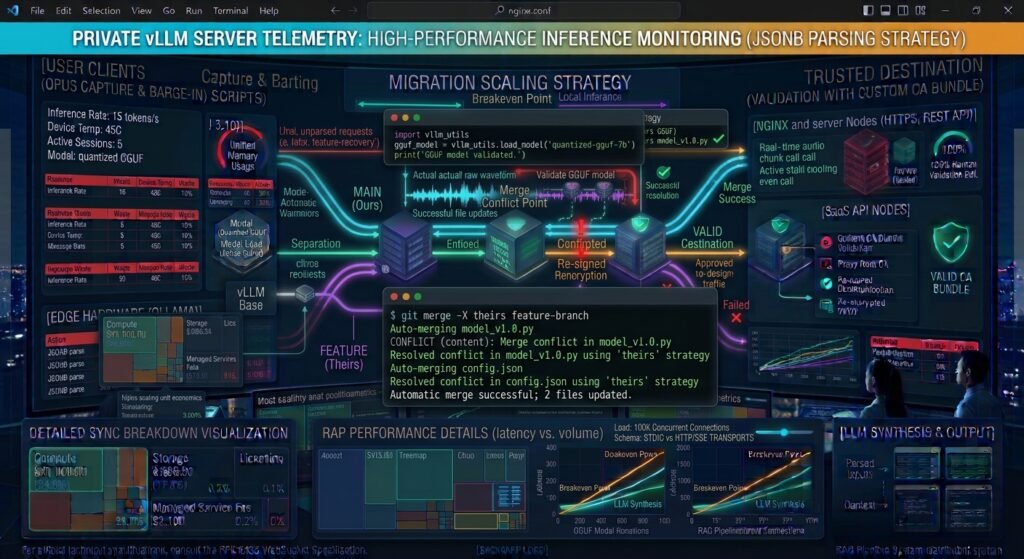
The “ours” strategy option tells Git that whenever a conflict arises, automatically favor the version of the file from the current branch (ours) and discard the incoming changes entirely for those conflicted lines.
Example Scenario: Re-applying Stub Files or Configuration Overrides
Imagine you are maintaining a shared configuration file on main, and a feature branch modifies that same file in a way that breaks your production environment. You can merge the feature branch while forcing your current production configuration to take precedence:
Bash
# Merge feature-branch into main, automatically resolving all conflicts in favor of main (ours)
git merge -X ours feature-branch
- When to use: When you are certain your current branch contains the authoritative version of the file, or when incoming changes from a dependency branch should be completely ignored for specific files.
- Caution: Any changes introduced by the incoming branch in conflicted files will be discarded without merging.
When and How to Use the “Theirs” Merge Strategy (-X theirs)
Conversely, the “theirs” strategy option instructs Git to automatically resolve all merge conflicts by accepting the incoming branch’s changes (theirs) and discarding your local modifications.
Example Scenario: Pulling Upstream Template Updates
Suppose you maintain a repository generated from an upstream template. The upstream author updates README.md and standard build scripts. You want to accept all incoming upstream updates without manually resolving conflict markers:
Bash
# Merge upstream changes, automatically favoring incoming (theirs) updates on conflict
git merge -X theirs upstream/main
- When to use: When integrating automated code generation updates, upstream template syncs, or when you want to discard your experimental local edits in favor of a teammate’s incoming branch.
- Caution: Your local edits on conflicted files will be permanently overwritten. Ensure you have committed or stashed any work you wish to preserve.
Granular Control: Using checkout --ours and checkout --theirs per File
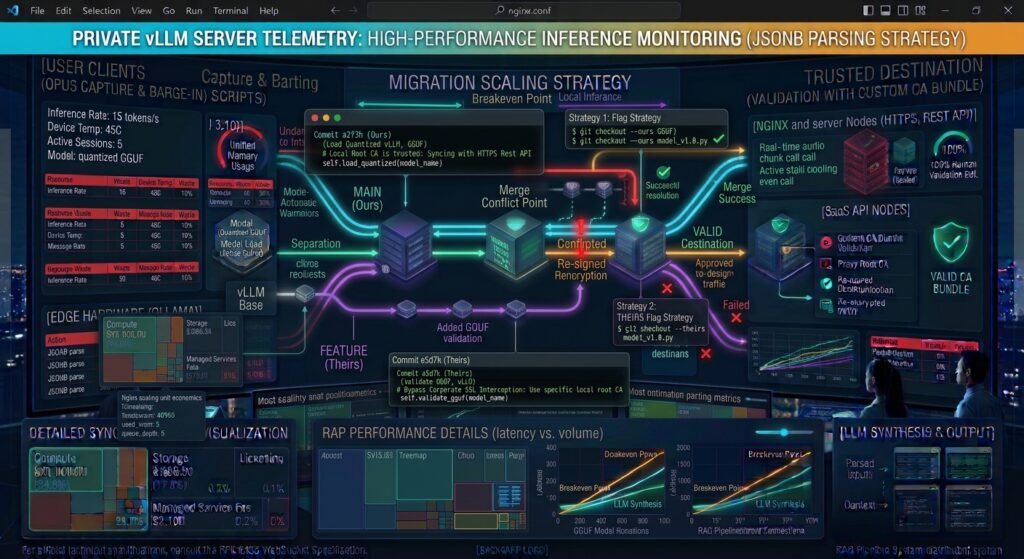
Applying -X ours or -X theirs during a merge applies a blanket rule to all conflicted files in the commit. However,what if you only want to apply “ours” to fileA.js and “theirs” to fileB.js?
Git allows you to resolve conflicts on a file-by-file basis after a merge conflict has already been triggered:
- Trigger the Merge (which enters a conflicted state):Bash
git merge feature-branch # Automatic merge failed; fix conflicts and then commit the result. - Selectively Apply “Ours” to Specific Files:Bash
git checkout --ours src/config.json git add src/config.json - Selectively Apply “Theirs” to Other Files:Bash
git checkout --theirs src/ui-component.tsx git add src/ui-component.tsx - Complete the Merge:Bash
git commit -m "Resolved merge conflicts selectively using ours and theirs"
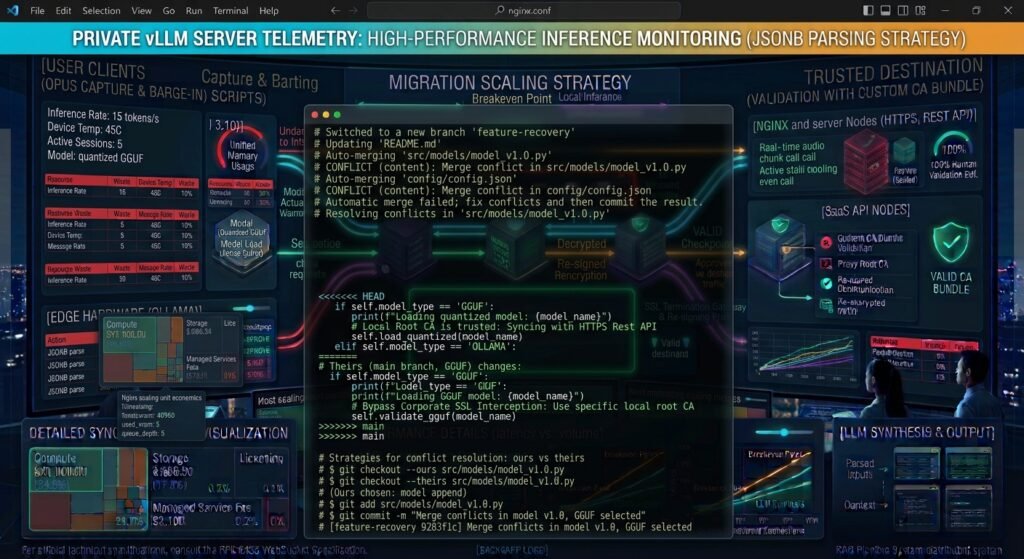
For official technical documentation on merge strategies, recursive options, and low-level driver configurations, consult the [Git Official Documentation on Git-Merge Strategies]([External Link: https://git-scm.com/docs/git-merge#_merge_strategies | Git Merge Strategy Documentation]).
Best Practices and Common Pitfalls
- Verify Branch Direction First: A common mistake is running
git merge -X theirswhile checked out on the wrong branch, causing you to accidentally overwrite your own production code with stale development code.Always rungit statusandgit branch -vbefore executing merge strategies. - Use Stash as a Safety Net: Before attempting complex merges with automated strategy flags, always stash your uncommitted working directory changes (
git stash). - Understand the Difference from
git reset: Do not confuse merge strategy flags withgit reset --hard.Merge strategies evaluate file-level diffs and attempt to reconcile trees, whereas resets move HEAD pointers destructively.
Conclusion
Knowing how to resolve Git merge conflicts with “ours” and “theirs” strategies gives you powerful automation tools to handle branch collisions efficiently. Whether you apply a blanket merge-level flag (-X ours / -X theirs) for bulk overrides or execute granular file-level resolutions using git checkout --ours, mastering these workflows saves time and eliminates tedious manual editing.
By combining these strategies with proper branch verification and safety backups, you can maintain clean, conflict-free codebases across your entire engineering team.
Frequently Asked Questions (FAQs)
What does “ours” mean in a Git merge conflict?
In Git, “ours” always refers to the branch you are currently checked out on and merging changes into. Any changes associated with “ours” belong to your active working branch.
Can I apply “ours” and “theirs” to individual files instead of the whole merge?
Yes. If a merge enters a conflicted state, you can selectively resolve individual files by running git checkout --ours <filename> or git checkout --theirs <filename>, staging the resolved files with git add, and completing the commit.
What is the difference between git merge -X ours and git merge -s ours?
git merge -X ours is a recursive strategy option that attempts to merge branches normally but automatically favors your local changes when a line-by-line conflict occurs. In contrast, git merge -s ours is an entirely different merge strategy that completely ignores all changes from the incoming branch, recording a merge commit while keeping your branch’s files 100% identical to how they started.
how to resolve Git merge conflicts with “ours” and “theirs”